


How to Make Seamless Pixel Art Textures (3 Ways)
Three ways to make a pixel-art texture tile without visible seams: paint with the repeat on screen, use the classic offset-by-half trick, or convert any texture in one click.

A seamless texture is a small image whose edges line up with themselves, so copies placed side by side read as one continuous surface - no visible grid, no hard line where one tile ends and the next begins. Every tiled wall, floor, and terrain surface in a 2D or voxel game depends on them. This guide covers three ways to make one: paint with the repeat visible from the start, fix an existing texture with the classic offset-by-half trick, or convert it in one click.
The examples use Hexcalibur, a free browser-based pixel-art editor with tiling tools built in, but the first two methods work in any pixel-art editor.
What makes a texture seamless?
When a game engine tiles a texture, it places identical copies edge to edge in a grid. Two separate things can give the repeat away:
- Edge mismatches. Any feature that touches an edge has to continue from the opposite edge. If a crack runs off the right side at one height and nothing picks it up on the left, every repeat shows a hard vertical seam.
- Repeating landmarks. Even a texture whose edges wrap perfectly can fail the eye test. One bright pixel, one distinctive blob, one strong diagonal - anything memorable turns into a polka-dot pattern the moment the texture repeats forty times across a wall.
A texture is seamless when both problems are handled: the edges wrap, and no single feature is loud enough to track from tile to tile.
Method 1: Paint with the repeat visible (Tiled mode)
The easiest seam to fix is the one you never paint. Instead of drawing a single tile and hoping, work with the repetition on screen the whole time.
In Hexcalibur, press Shift + ' (or use the View menu) to turn on Tiled mode. The canvas is surrounded by live copies of itself in a 3x3 grid, and painting wraps: drag a brushstroke off the right edge and it continues in from the left, exactly as it will in the game. The line, rectangle, circle, and other shape tools wrap the same way, so you can run a crack or a vine straight through an edge and watch it connect on the other side.
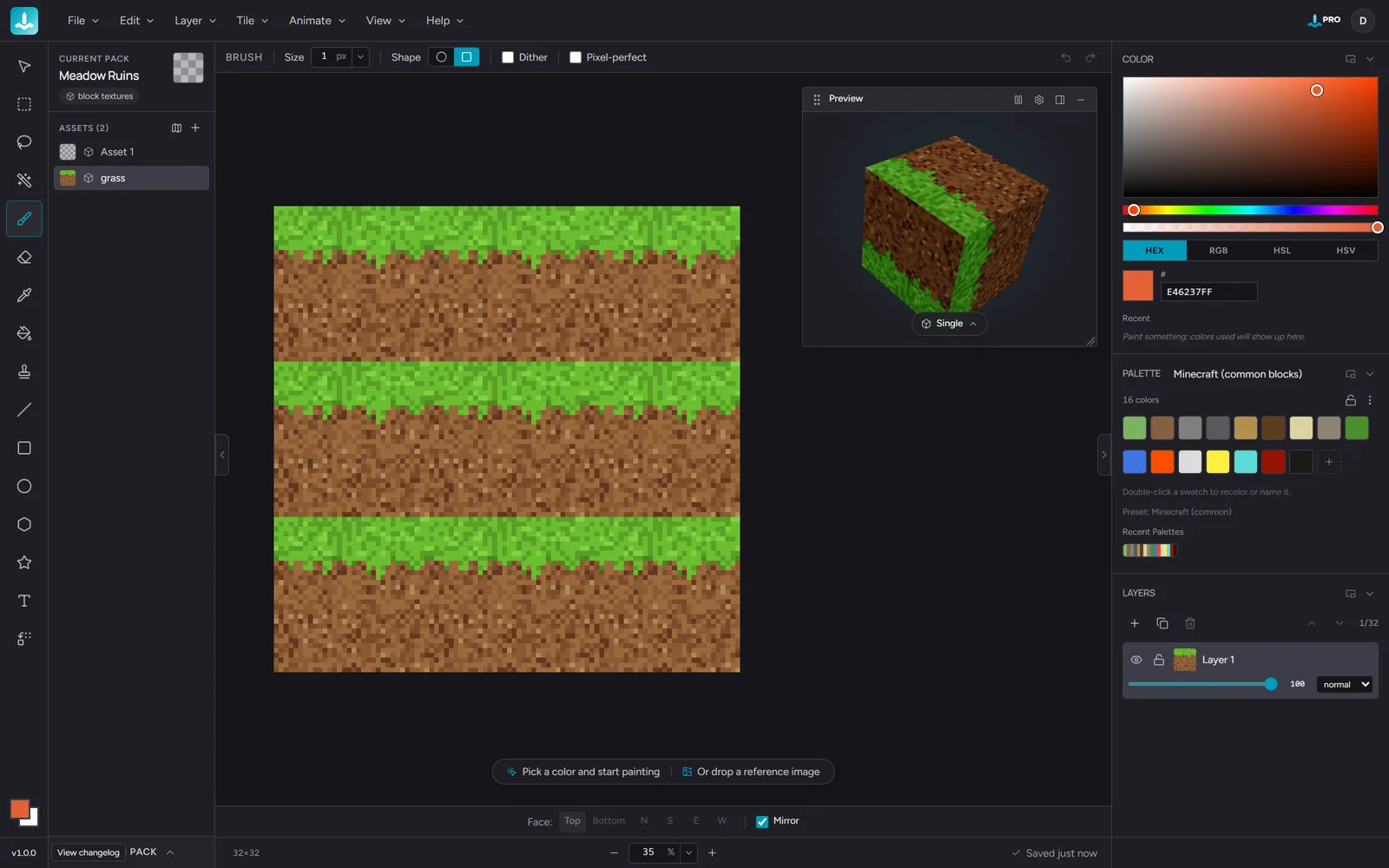
Seams, stripes, and eye-catching pixels are obvious the moment you make them, so you correct as you go instead of discovering the problems after export. The View menu also lets you repeat along just one axis - useful for something like a platformer ground strip that only ever tiles horizontally.
Tiled mode is on the free plan, and this is the method worth building as a habit: textures painted this way come out seamless by construction.
Method 2: The offset-by-half trick (works in any editor)
The classic manual technique for making an existing texture tile, and it works anywhere:
- Offset the image by half its width and half its height, with wrap-around, so the pixels that fall off one side re-enter on the other. Most editors have a wrap or offset function for this.
- Look at the center. The four old corners now meet in the middle of the canvas. The outer edges tile perfectly by construction - the seam has moved to the middle, where you can see it as a visible cross.
- Paint over the seam using colors already in the texture, blending the cross away with the same grain and detail as the rest of the surface.
- Leave the new edges alone. As long as you do not repaint the border pixels, the texture stays tileable.
This works, and it is worth knowing because it explains what "seamless" actually means mechanically. The downside is the labor: every significant revision means offsetting, repairing the middle by hand, and offsetting back, and it is easy to smear a deliberate pattern while repairing.
Method 3: Convert it in one click (Make Seamless)
Hexcalibur automates the whole offset-and-repair routine. Open the Tile menu and choose Make Seamless. The dialog shows your texture before and after, each tiled 3x3 so you judge the actual repeat rather than a single copy:
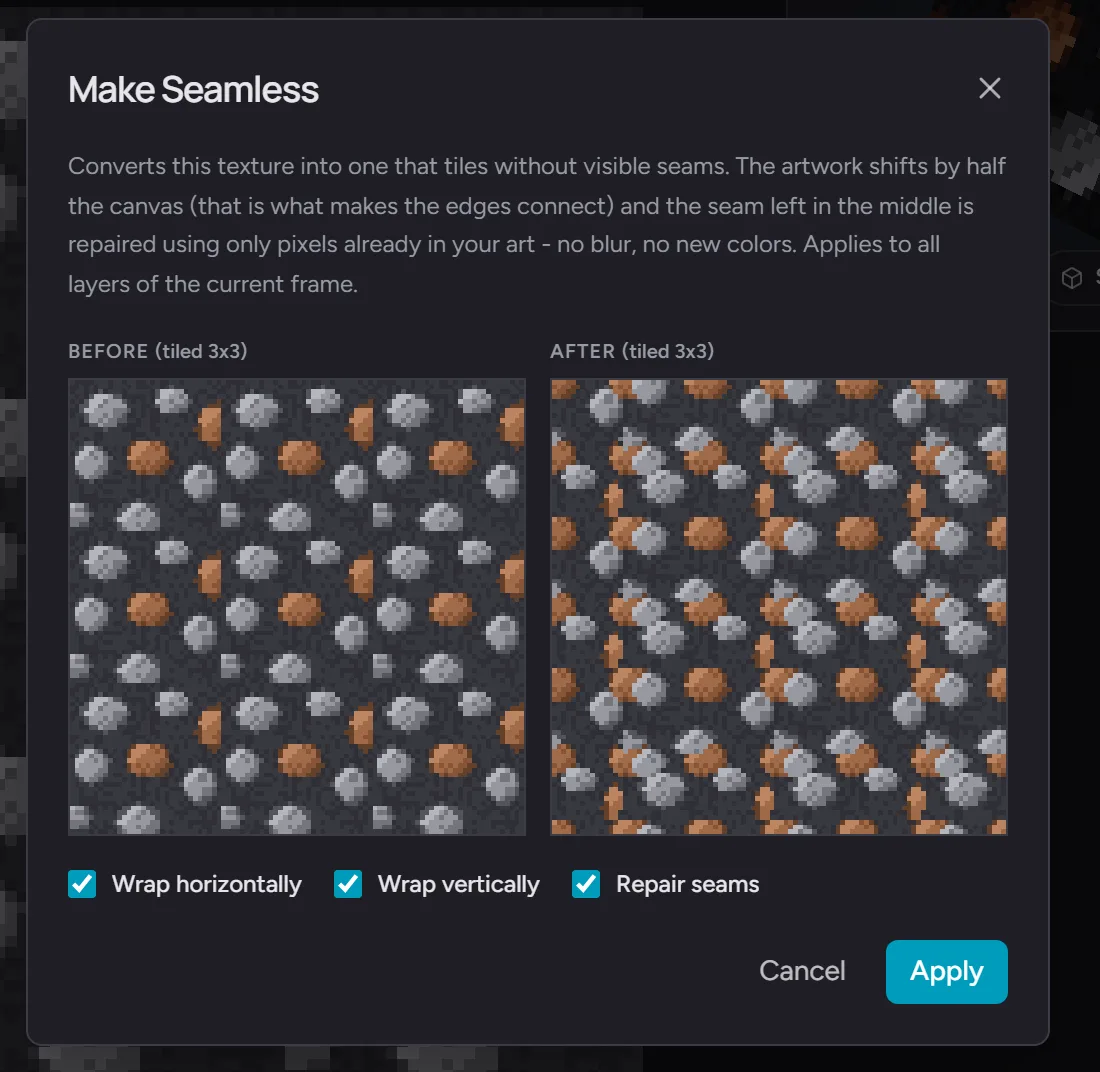
Under the hood it does the same thing you would do by hand, just more carefully: the artwork shifts by half the canvas so the edges connect, then the seam left in the middle is repaired using only pixels already in your art. No blur, no smudging, no new colors - the output uses a subset of your existing palette, so palette-locked art stays palette-locked. You can wrap horizontally, vertically, or both, and every layer of the current frame shifts together so layered artwork stays in register. One undo step reverses the whole conversion.
Make Seamless is part of Hexcalibur Pro. The manual methods above are free everywhere, so think of it as buying back the repair time on every texture in a pack.
How do you check that a texture actually tiles?
However you made the texture, verify it the same way:
- Look at it repeating. Tiled mode is the honest test - a single copy can look perfect while the 3x3 repeat shows stripes. Scan for straight lines running between copies and for any spot your eye keeps returning to.
- Zoom out to game scale. A texture is seen at gameplay zoom, not at 20x in the editor. Problems like banding and hotspots mostly live at the small size.
- Wrap it onto a 3D block. For voxel and block textures, edges also meet at cube corners, which flat repeats never show. Hexcalibur's live 3D preview updates as you paint, so corner seams show up while you can still fix them.
Common mistakes that break tiling
- One loud pixel. A single bright highlight reads fine on the tile and becomes a dot grid on the wall. Save strong highlights for decoration blocks that do not tile.
- A gradient across the tile. If the left side is darker than the right, every repeat shows a value jump at the boundary - even when the pixels technically wrap. Keep overall brightness flat and put the variation in the detail.
- Heavy borders. Outlining the edge of the tile guarantees it reads as a grid of tiles instead of a continuous surface.
- Detail that avoids the edges. Centering all the interest leaves an empty margin that repeats as a picture-frame pattern. Let features cross the edges - that is what wrap painting is for.
- Too much regularity. Perfectly even spacing amplifies the repeat. Irregular, slightly clustered detail hides it.
Frequently asked questions
What is a seamless texture?
A texture whose opposite edges continue into each other, so identical copies placed side by side form one continuous surface with no visible joins. Games rely on them because tiling one small image across a large surface is far cheaper than authoring the whole surface.
How do I make an existing texture seamless without repainting it?
Offset it by half its width and height with wrap-around, then repair the seam that appears in the middle. That is the manual route in any editor; Hexcalibur's Make Seamless does the offset and the repair in one step, with a tiled before-and-after preview.
Does making a texture seamless change my colors?
Not in Hexcalibur. The conversion only moves and copies pixels that are already in the artwork - no blur or blending - so the result never introduces a color that was not there before.
What size should a seamless texture be?
Whatever your game uses; the technique is the same at any size. Voxel block textures are usually 16x16 or 32x32, and 2D tilesets commonly use 16x16 to 64x64 tiles. Hexcalibur canvases go from 16x16 up to 256x256, with presets for the common sizes.
Do I need Photoshop or any installed software?
No. Everything in this guide runs in the browser - Tiled mode, wrap painting, and the 3D preview are on Hexcalibur's free plan. If you make textures for Minecraft specifically, start with how to make Minecraft block textures.
How do I get a seamless texture into my game?
Export it as a PNG or atlas and it drops into Godot, Unity, ThreeJS, or Babylon, or use the dedicated Minecraft and Tiled exports. See exporting block textures for game engines for the full rundown.
Ready to try it? Open Hexcalibur, turn on Tiled mode, and paint your first texture that tiles.